
One of the many challenges with creating a decryption policy in an organization is the ability to be able to understand what types of traffic need to be decrypted and not decrypted. In my home lab, I’ve been playing around with enabling a TLS decryption policy and have come across some quirky things with my mobile devices where there are some pesky Pinned Certificates enabled within applications.
This is my attempt to try and make it easier to enable decryption. I am making the assumption that you have a working/functional PKI and the appropriate certificate authorities are deployed to your endpoints.
The logic should always be, start small and grow the policy from there. With this in mind, look at the following approach:
Disclaimer – this is a high-level approach and should not be assumed to be ok for all environments. Only you understand what’s going on in your environment. Make sure whatever you do, it aligns with your needs and requirements.
- Create a No Decryption Policy for the following categories – Government, Health, Shopping and Banking/Finance. This avoids us being exposed to sensitive data from our users (e.g. SSN’s, HIPAA information, PCI data, etc)
- If you have the capability to turn on a default “No Decrypt” rule which allows you to gain better visibility into the TLS traffic floating around your network, then start with this.
- Identify a small subset of users who are ok with being the trailblazers and trendsetters and are willing to provide constructive feedback during this pilot phase. Enable decryption for them.
- Monitor your device’s logs for any decryption errors that are occurring. Investigate what the cause of the decryption errors and apply appropriate actions relative to your business needs.
- Once there’s a level of stability, expand the testing user group to include a broader audience.
- Repeat steps 1-5 until you’ve covered your population.
In my lab, I came across 3 applications that did not like TLS decryption:
- Starbucks App – the app fails to load the Starbucks locations on the map, due to Pinned Certificate requirements. The only way to make this work is to disable decryption for
edge.openapi.starbucks.com. - Ventusky Weather App – the app fails to load any weather data. Disable decryption for these hostnames
api.ventusky.comanddata.ventusky.com. - Spotify App on laptop – Spotify seems to hate any sort of decryption, there is quite an extended list of items that need to have decryption disabled:
apresolve.spotify.comlogin5.spotify.comguc3-spclient.spotify.comguc3-dealer.spotify.comspclient.wg.spotify.comapi-partner.spotify.comaudio4-ak-spotify-com.akamaized.netmisc.spotifycdn.comseed-mix-image.spotifycdn.comwrapped-images.spotifycdn.comaudio4-gm-fb.spotifycdn.comheads-fa.scdn.comisc.scdn.coaudio4-fa.scdn.coi.scdn.conewjams-images.scdn.codl.discordapp.net
- Discord App – another culprit that hates decryption:
dl.discordapp.netgateway.discord.ggstatus.discord.comcdn.discordapp.comlatency.discord.media
Need a flat text file with all these hostnames? Grab it here.
What is a Pinned Certificate?
To prevent Man-in-the-Middle (MitM) attacks, applications define exactly what certificates they expect to see during the TLS handshake. If something (like our decryption policy) presents another certificate, then the TLS handshake will fail to establish.
Advanced Wireshark Troubleshooting
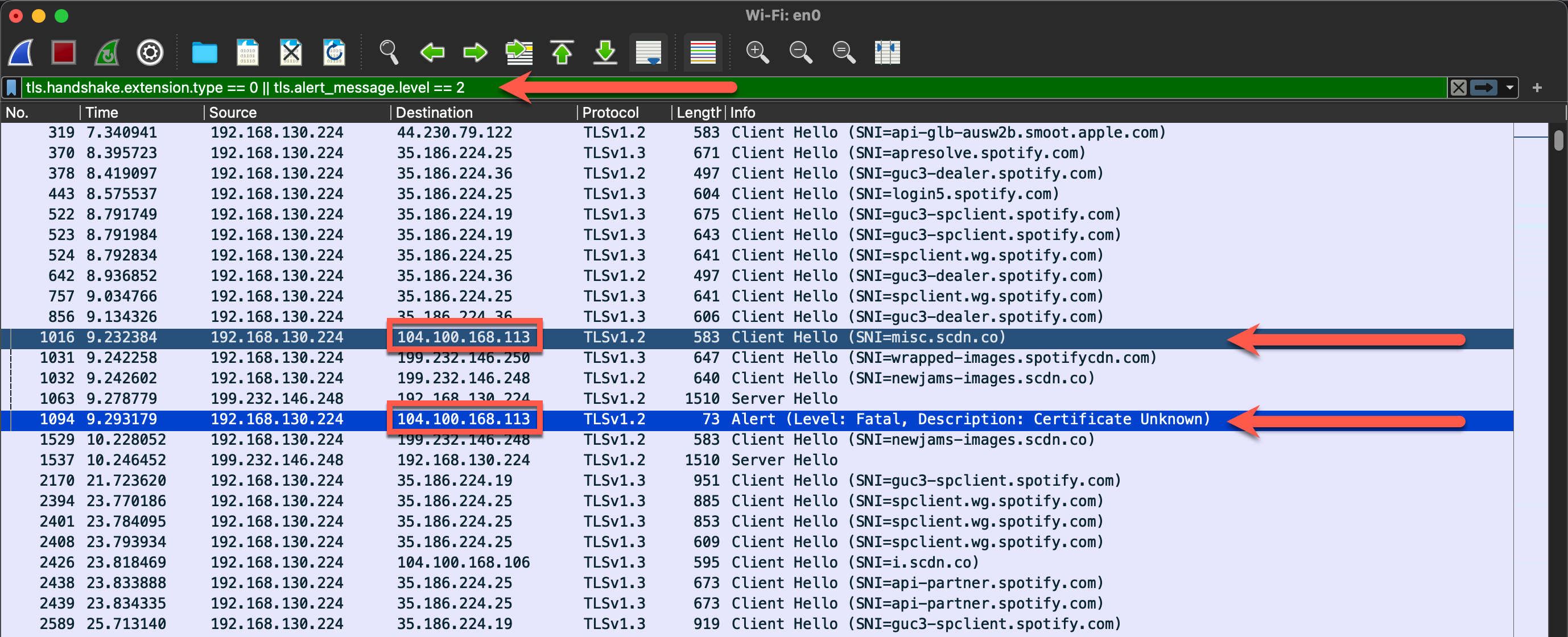
I managed to create a filter that if you have a packet capture of historical events (or even capturing real-time), apply this filter to help figure out what what are pinned certificates:
tls.handshake.extension.type == 0 || tls.alert_message.level == 2
Simply put, the filter is only displaying the Client Hello portion of the handshake OR showing when the TLS alert message is a fatal (2). Given that packets are by default showing sequentially, it’s easier to see which handshakes are failing due to Pinned Certificates and one can take corrective action.
Here’s an example screenshot of how much easier it is to figure out how to do decryption:
 Personal Blog