
Introduction
By default a PowerShell script is not signed.
What does this mean? Unless there’s a policy that allows unsigned scripts to run/execute, it’s going to fail.
Microsoft uses “Code Signing” certificates to get around this. The PowerShell script is stamped with a signed certificate (issued from a trusted authority).
Risks
Now there are some big risk concerns for this Code Signing certificate.
You can’t issue a Code Signing certificate to only sign one piece of code (bummer). It is absolutely essential to ensure that the certificate is only given to authorized and trusted people within the company and the validity of the certificate is not issued for several years (minimize the risk).
Even more importantly is that the certificate is stored *securely*. I really have to emphasize the point…If that code signing certificate falls into the wrong hands…that new pair of hands can create something, sign it and run that script without any issues in the organization! No dialogue warnings, no popups! BIG, BIG RISK!
Why? Well that’s the whole point of PKI – defining a set level of trust/identity within an organization to help manage the company risks.
Now that is out of the way…How do we go about doing Code Signing?
Important info
The Code Signing template in ADCS will stamp the certificate with a special use case (extendedKeyUsage=codeSigning, OID 1.3.6.1.5.5.7.3.3)
Ensure that the certificate includes important information in the Subject field. Definitely include the email address of the certificate owner. Other useful fields are:
- Common Name (CN),
- Organizational Unit (OU),
- Organization (O),
- Locality (L),
- State (S),
- Country (C), and
- Domain Component (DC).
The more information that’s included in the certificate the easier it is to track down the person when the certificate is used to sign code.
If any of the information changes during the lifespan of the certificate,
- issue a new certificate to a trusted person,
- re-sign the scripts again that have been signed in the past, and
- revoke the old certificate.
Make sure the certificate is in the pfx/p12 format and has a really long/complex password!
Now we can get onto the coding stuff:
PowerShell
To validate the status of the PowerShell script use the Get-AuthenticodeSignature cmdlet.
PS C:\ > Get-AuthenticodeSignature <POWERSHELL_FILE_TO_BE_SIGNED>


    Directory: C:\


  SignerCertificate Status Path
  ----------------- ------ ----
  NotSigned <POWERSHELL_FILE_TO_BE_SIGNED>

$MyCertFromPfx = Get-PfxCertificate -FilePath <LOCATION OF Code_Signing.p12 FILE>
At this point you’ll need to enter the password (remember…long/complex password…not super easy to guess password)
Once you’ve entered the password, type this command:
PS C:\> Set-AuthenticodeSignature -PSPath <POWERSHELL_FILE_TO_BE_SIGNED> -Certificate $MyCertFromPfx
 Directory: C:\

SignerCertificate Status Path
----------------- ------ ----
423136D6D03671AD0DAC400D3A368BD83890950A Valid <POWERSHELL_FILE_TO_BE_SIGNED>
If you look at the properties of the file (right click on the PowerShell file, select properties, and you’ll see a Digital Signatures tab), you can see that the PowerShell script has been signed using your Code Signing certificate:
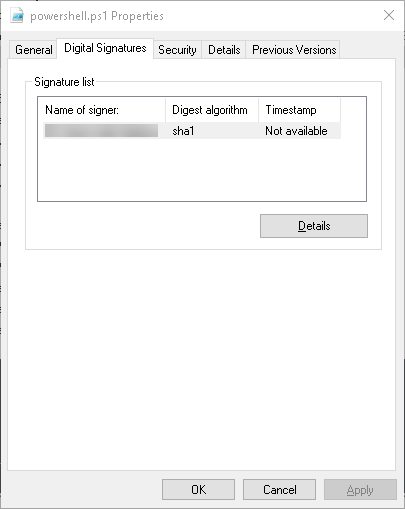
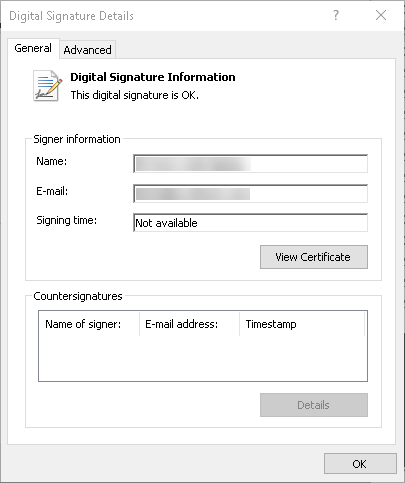
In my example, I don’t have a Timestamp server, so that’s why it says “Not Available”.
 Personal Blog