If you’re like me, finding ways to quickly edit things is far more preferable than trying to edit content within an interface that hasn’t been updated in a (very) long time.
In this particular example, I’m going to show you how to edit the Certificate Revocation List (CRL) and Authority Information Access (AIA) information on Microsoft’s Certificate Authority service. Not sure what I’m talking about? Let’s start to take a look at the CRL first:

As you can see in the screenshot, Microsoft only provides an Add or Remove button. There are no options to shift the order up/down, or at the very least, edit the entry. So in order to speed up this editing process, we need to open up the registry and navigate to this location:
HKEY_LOCAL_MACHINE\SYSTEM\ControlSet001\Services\CertSvc\Configuration\<Subordinate CA Name>\CRLPublicationURLs
Important to note here the <Subordinate CA Name> is the name of your Subordinate CA Server!
Looking at the entry, we see the following (based on the screenshot above)
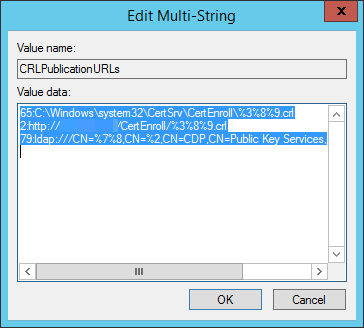
Now we can edit the contents at our leisure, shift things around, edit values, etc. Much easier right?! If this is all you wanted to change, just remember to stop and start the Microsoft Certificate services with the following commands:
net stop certsvc
net start certsvc
Not finished? Still need to edit AIA? Keep reading below…
Similarly you can edit the AIA information as well.
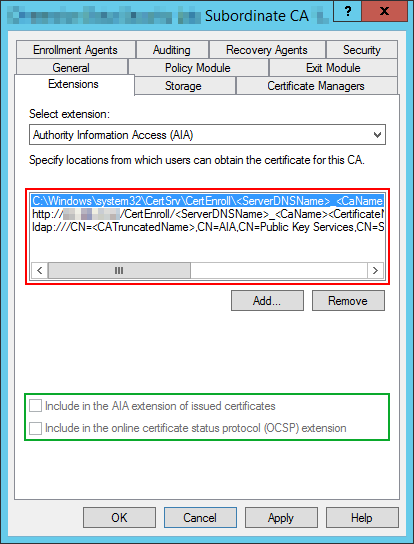
Looking at the AIA extensions settings we see the same Add and Remove buttons, but nothing to shift the contents up/down or edit each line item. We need to navigate to this registry location:
HKEY_LOCAL_MACHINE\SYSTEM\ControlSet001\Services\CertSvc\Configuration\<Subordinate CA Name>\CACertPublicationURLs
Important to note here the <Subordinate CA Name> is the name of your Subordinate CA Server!
Looking at the entry at that location we see the following settings:
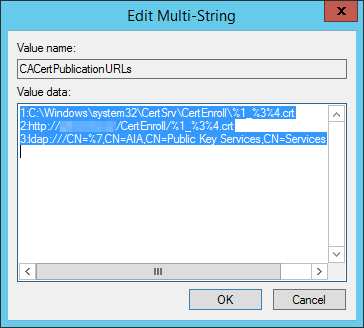
Tweak entry as needed and make sure you stop and start certificate services with the commands below:
net stop certsvc
net start certsvc
 Personal Blog